14 Aesthetic Grouping
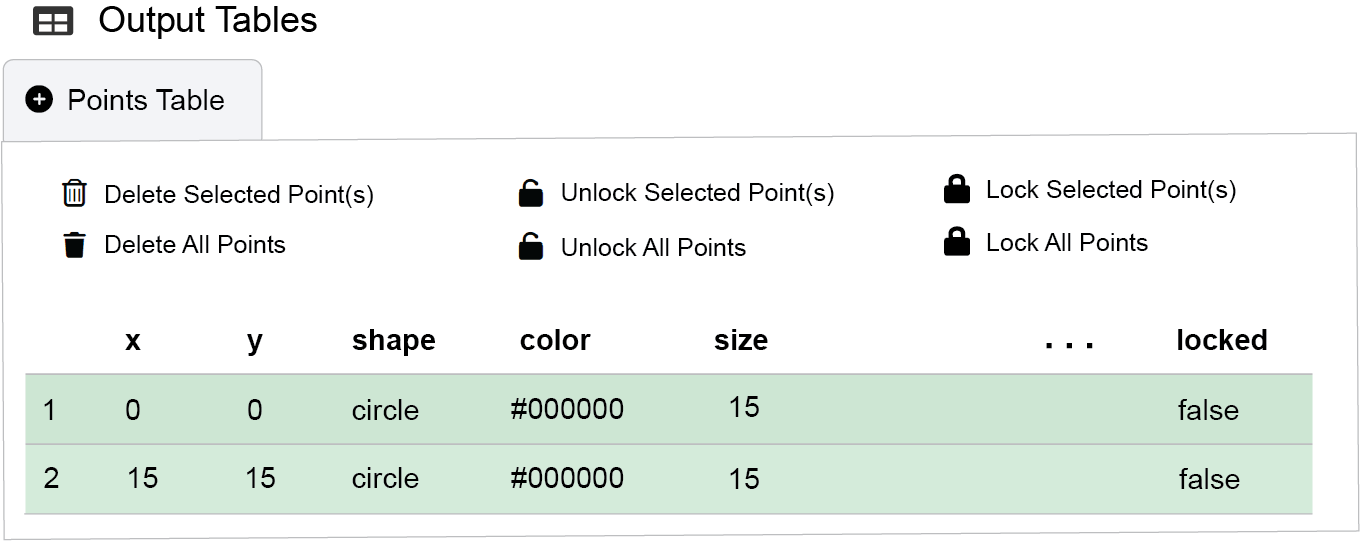
The Aesthetic Grouping feature in ggsem allows you to apply consistent visual styling to groups of unlocked elements. This functionality is only available for elements that are not locked and when working with non-lavaan, non-network diagrams (i.e., locked = FALSE, lavaan = FALSE, network = FALSE). Unlocked elements are shown as green rows in the output tables, instead of red or white.
In other words, you need to have pressed Finalize a SEM or Finalize a Network for SEM or Network elements respectively to use options in this menu for each group. The Finalize button works for one group at a time.
Use Apply Changes to modify the aesthetics unless other buttons are presented.
14.0.1 Group Aesthetics
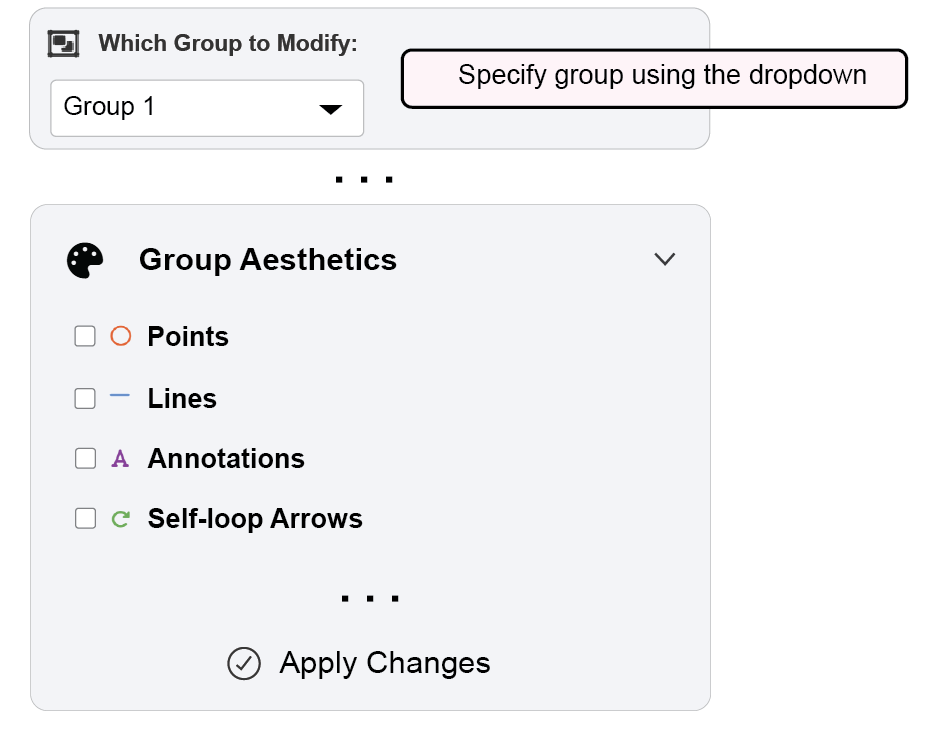
Apply coordinated styling to different element types within selected groups:
Points: Modify color, size, shape, and transparency for unlocked nodes and points
Lines: Customize color, width, line type, and transparency for unlocked edges and paths
Annotations: Adjust color, size, font face, and transparency for unlocked text labels
Self-loop Arrows: Style color, width, and transparency for unlocked circular arrows
Usage: Select a group from the dropdown menu, then choose the element type(s) you wish to style. All changes apply consistently to all unlocked elements within the selected group after clicking Apply Changes.
14.0.2 Group Label Edit
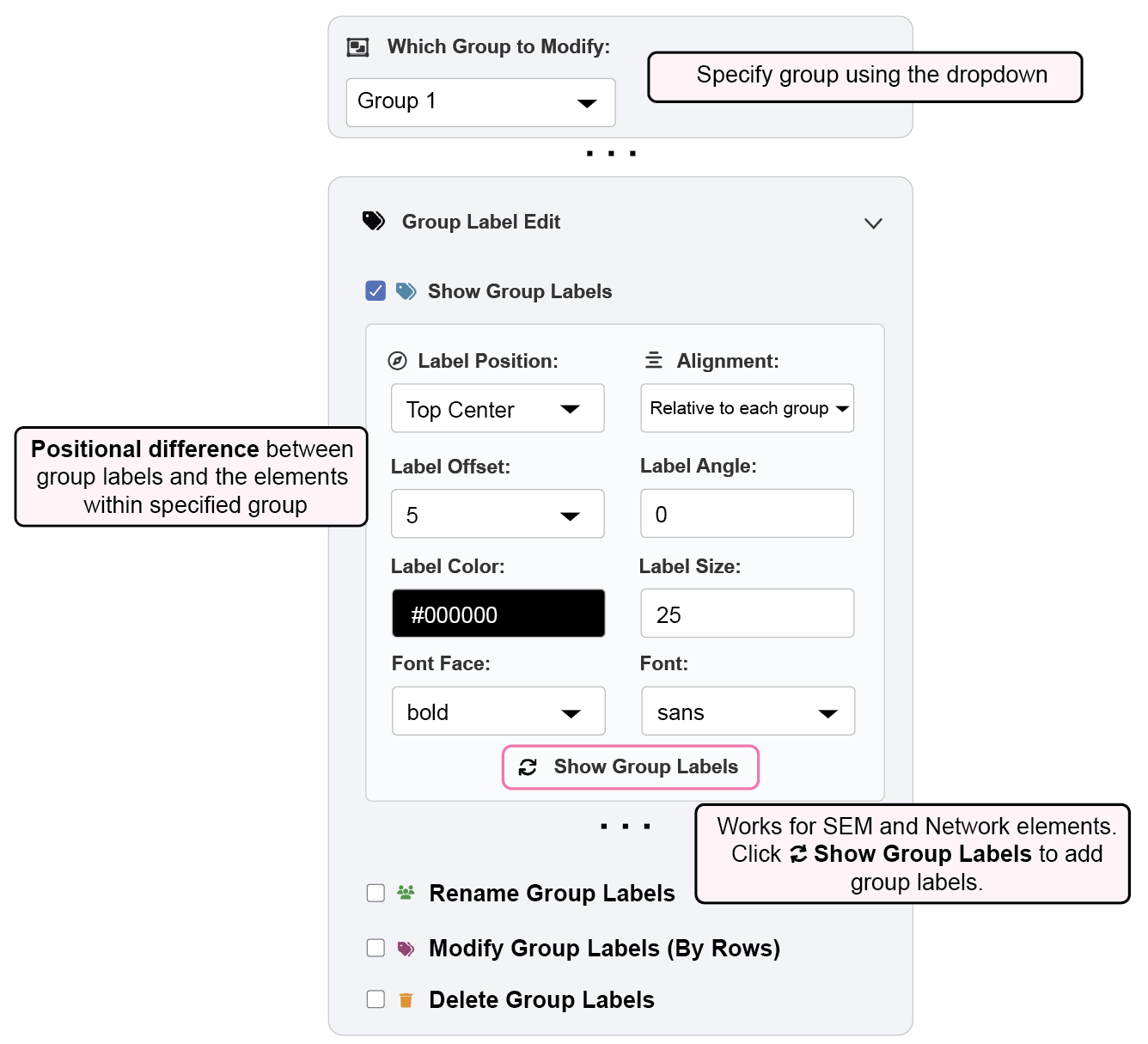
Manage and customize group labels for better organization and visualization:
Show (or Update) Group Labels
Label Position: Choose from 8 positions (top, bottom, left, right, and corner placements)
Label Styling: Customize color, size, font family, and style
Alignment: Labels can be relative to each group’s elements, or you can specify X and/or Y coordinates of labels to align.
Offset Control: Adjust label distance from group elements
Note: Also works for SEM (
lavaan = TRUE) and network elements (network = TRUE)Click Show Group Labels to add or update group labels on your diagrams.
Rename Group Labels
Rename Group Labels?: Choose a group to rename using the dropdown.
New Group Name: Type new name of the selected group.
Modify Group Labels (By Rows)
This menu works by selecting rows in the output tables, and applies to selected rows only.
Reassign Labels: Select elements of other groups from output tables to existing groups
Rename Labels: Create new group labels for selected elements in the output tables
Clear Groups: Remove group assignments from selected elements in the output tables
Delete Group Labels
Delete Groups: Remove all elements associated with a specific group
Lock Groups: Protect groups from further modification while maintaining visibility. This sets
lock = TRUE
14.0.3 Group Position
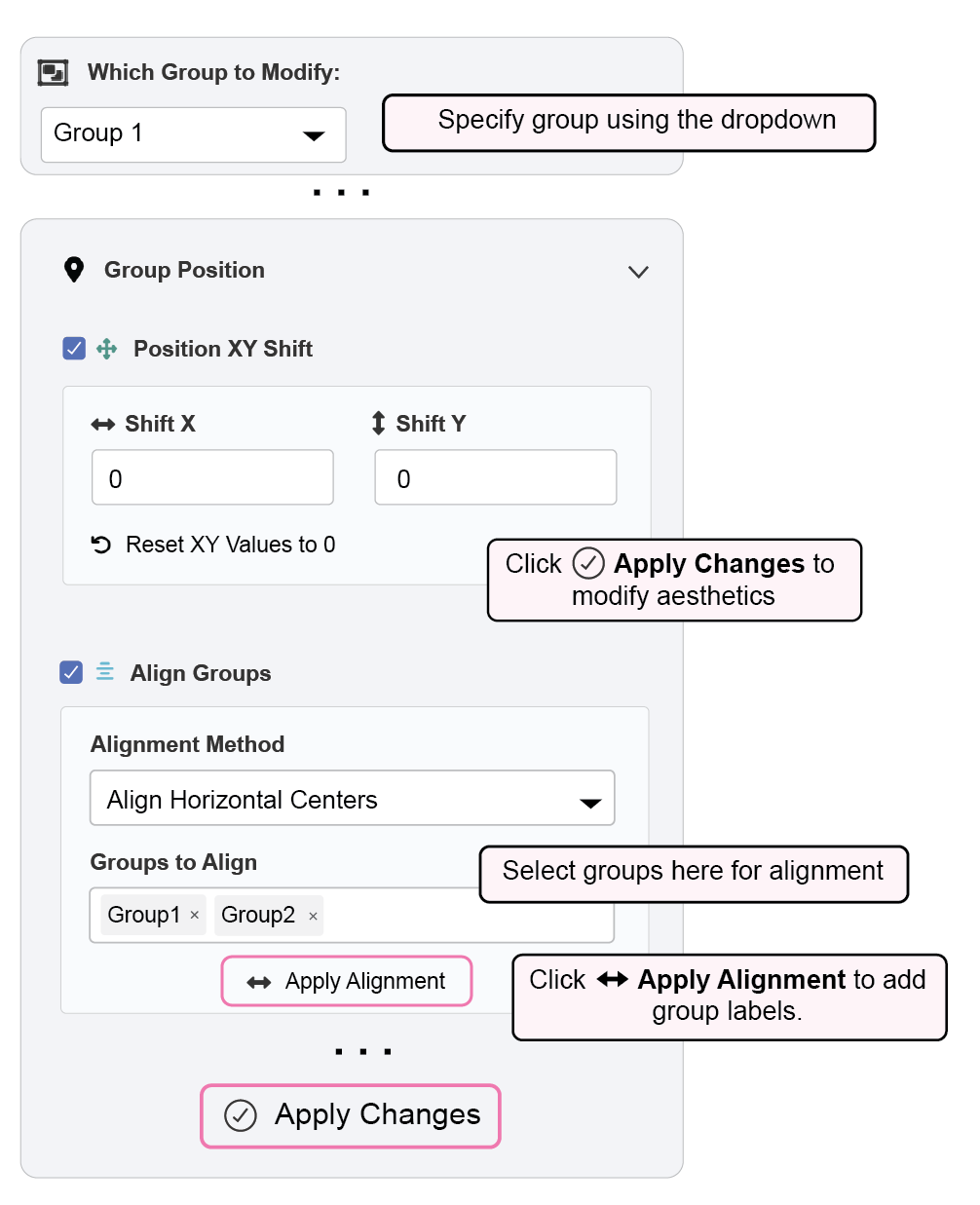
Transform the spatial arrangement of element groups:
Position XY Shift
Move entire groups horizontally or vertically while maintaining internal spatial relationships
Group is specified using the Which Group to Modify dropdown at the top.
Align Groups
Alignment Methods: Horizontal centers, vertical centers, or edge alignment (left, right, top, bottom)
Multi-group Selection: Align multiple groups simultaneously for consistent layout
Relative Positioning: Maintain current spatial relationships while applying alignment
Groups are selected using Groups to align box. This works when there are two or more groups.